


If you watch long YouTube videos for work or study, a good YouTube transcript extension feels less like a nice bonus and more like a sanity tool. Skimming an hour‑long lecture, searching for a single keyword in a product teardown, or double‑checking what someone actually said gets a lot easier when you have clean text in a side panel.
The problem: the Chrome Web Store is full of half‑broken add‑ons, confusing names, and extensions that haven’t been touched in years. I’ve tested a stack of them across research playlists, lecture recordings, and “guru” videos to see which ones genuinely help and which ones just add clutter.
In this guide, you’ll see seven Chrome tools that still work well today, how they differ, and a straightforward way to pick one that matches your workflow instead of fighting it.
A YouTube transcript extension adds a readable text panel next to the video player.
TL;DR
- There are three broad types of YouTube transcript extensions: raw transcript viewers, transcript + AI summary tools, and full “video brief” analyzers.
- For students and self‑learners, AI summary tools like Eightify or NoteGPT are handy; for teams and serious research, IsThisClickbait gives deeper structure and honesty checks.
- Start with one extension, run it on 3–5 typical videos, and keep it only if you make faster decisions about what to watch or skip.
What is a YouTube transcript extension, exactly?
YouTube already includes transcripts on many videos: open a video, hit the three dots under the player, and select “Show transcript.” That native feature is helpful, but it’s basic: no summaries, no real search UX, no easy way to copy or export.
A YouTube transcript Chrome extension sits on top of that. It pulls the transcript into a cleaner interface (often in a side panel), adds time‑linked highlights, lets you search by keyword, and in many cases feeds the text into an AI model for summaries, outlines, or Q&A.
A typical setup with a YouTube video on one side and a transcript extension on the other.
Typical jobs these extensions handle well:
- Skimming long videos to see whether they are worth a full watch.
- Jumping to the exact timestamp where a topic or phrase appears.
- Turning lectures, reviews, and breakdowns into written notes.
- Checking whether the video title and thumbnail match the content.
If you’re doing exam prep, market research, or competitive monitoring from YouTube, turning key videos into searchable text is often the only practical way to keep up with the more than 1 billion hours of content people watch every day.
For reference, Google’s own help article explains how the built‑in transcript works, but third‑party tools give you much more flexibility than the standard controls in YouTube’s default interface on YouTube Help.
Quick comparison: 7 Chrome tools that actually work
Here’s the short list before we dig into details; all of these worked reliably in testing.
The 7 best YouTube transcript Chrome extensions
1. IsThisClickbait – Transcript, summaries & honesty checks
IsThisClickbait runs as a browser extension and web app next to YouTube. It pulls the full transcript, compares it with the title and thumbnail, and turns the video into a concise brief: summary, clickbait score (with reasoning), key points, and must‑watch moments with timestamps.
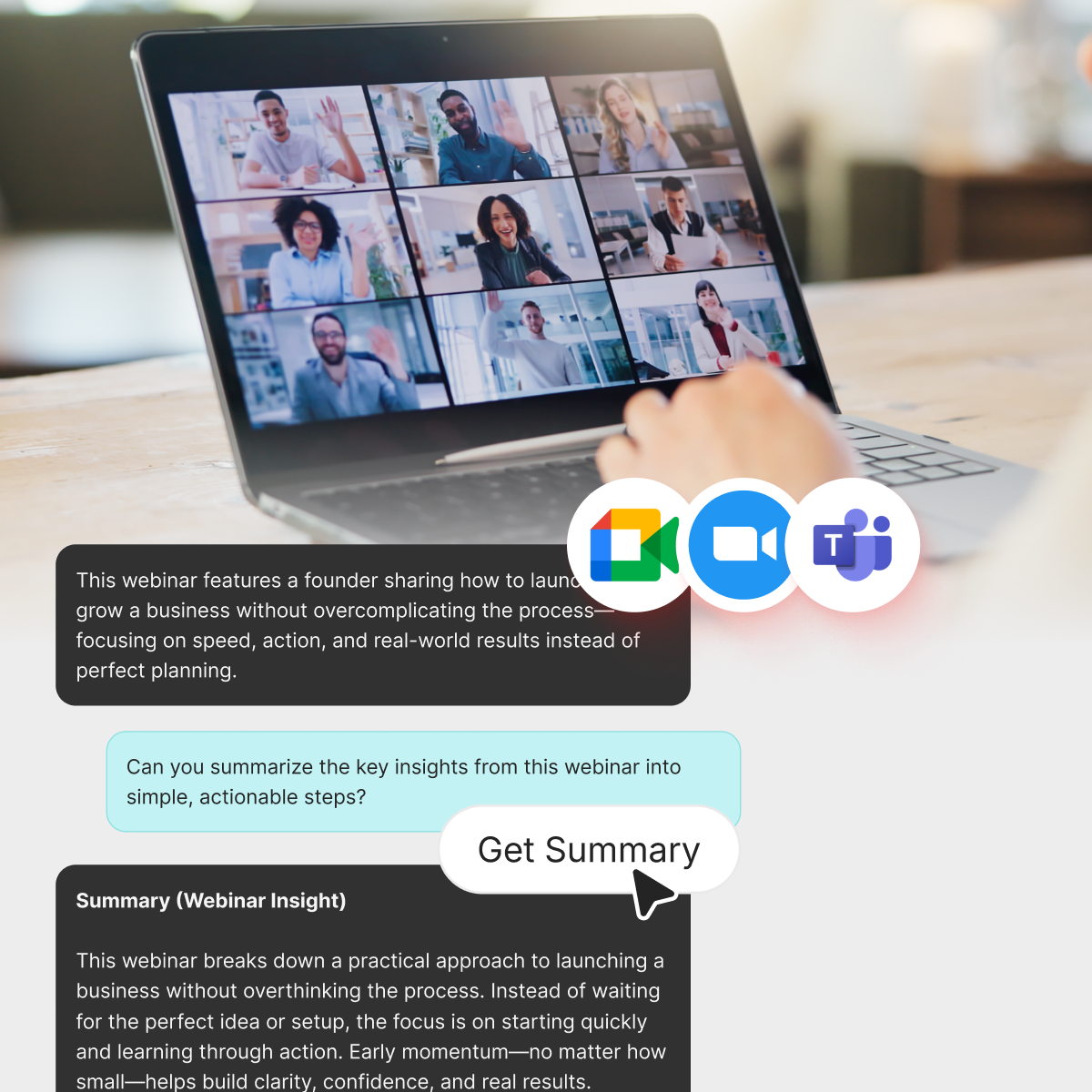
Teams can use YouTube transcript extensions to turn long videos into shareable briefs.
It runs on large language models like Claude, OpenAI, and Gemini, and even lets you chat with the video content—ask follow‑up questions, request simpler explanations, or generate bullet‑point notes for your team.
If you’re the “designated watcher” in a group or company, these structured briefs keep everyone aligned without asking each person to sit through an hour‑long recording. Paid plans on the pricing page scale by usage and team size.
2. YouTube Summary with ChatGPT & Claude (Glasp)
Glasp’s “YouTube Summary extension with ChatGPT & Claude” adds a side panel on YouTube with the transcript and a one‑click way to send it to an AI model. You get a plain text transcript, a short summary, and a place to ask basic questions about the video.
Glasp also leans into social bookmarking and highlighting for written content, so if you already use it to save articles, keeping your YouTube notes there as well can simplify your stack.
3. Eightify – Fast AI YouTube summaries
The Eightify Chrome extension focuses on speed and clarity. Open a long video, tap the Eightify button, and you’ll see bullet‑point takeaways grouped by topic, often with timestamps so you can jump straight to the part you care about.
It’s ideal if you live in “summary first, video second” mode: skim the bullets, decide whether the content is worth deeper attention, then watch only the sections that matter.
4. Glarity – Transcript + summaries across the web
Glarity is a multi‑site summarizer: on YouTube it pulls transcripts and shows AI‑generated summaries, and on Google and news sites it adds quick answer boxes for long reads.
If you like one extension that works on YouTube, search, and articles, Glarity keeps things consistent, but its YouTube‑specific features are slimmer than tools built only for video.
5. NoteGPT – For people who live in their notes
NoteGPT grabs transcripts from YouTube (and other platforms) and turns them into AI‑generated notes you can export to tools like Notion or Obsidian. Think summaries, key bullet points, and flashcard‑style content.
This is handy if your workflow already revolves around a knowledge base. Instead of pausing a lecture to type everything by hand, you collect the transcript, generate notes, and then refine them inside your usual note‑taking tool.
6. YouTube Digest – Multiple summary formats
YouTube Digest focuses on giving you different summary “shapes”: bullets, paragraph summaries, and chapter‑like breakdowns depending on the model and settings you pick. Underneath, it relies on transcript access, so you still benefit from text you can skim.
It suits people who like experimenting with different AI models or styles for tutorials, news, and academic talks.
7. Transcript for YouTube – Simple, copy‑friendly text
Not everyone needs AI. Sometimes you just want a clean transcript you can copy into a doc, send to a colleague, or quote in an article.
Lightweight extensions such as “Transcript for YouTube” focus on that single job: display the transcript in a panel, let you search inside it, and copy text without weird formatting. Journalists, researchers, and content writers often prefer this low‑friction setup.
How to choose the right YouTube transcript extension for your workflow
With so many options, the right question isn’t “Which one is best?” but “Which one matches how I already watch and work?”
Choosing a YouTube transcript extension is easier with a clear checklist of your needs.
“The right YouTube transcript extension is the one that actually helps you decide what to watch, skim, or skip faster.”
Start with these questions
- How long are the videos you watch most? Short clips and 2‑hour lectures ask very different things from a transcript tool.
- Do you mostly want raw text or guidance? If you like reading transcripts, a simple viewer works; if you prefer “executive summaries,” AI‑powered tools make more sense.
- Are you working solo or with a team? Teams often need shareable briefs, risks, and opportunities, not just a wall of text.
- Where should your notes live? Inside the extension, inside your note‑taking app, or in a shared doc or wiki?
- What’s your privacy comfort level? Check each extension’s listing on the Chrome Web Store and its privacy policy to see what data it collects.
Recommended picks by use case
- Students and self‑learners: Eightify or Glasp’s YouTube Summary work well for quick study notes and “is this worth watching?” checks. For lecture‑heavy courses, IsThisClickbait’s student features can turn videos into exam‑ready notes.
- Professionals and teams: For product managers, analysts, marketers, and founders, IsThisClickbait shines because it checks whether a video lives up to its title and surfaces concrete takeaways for decks and docs.
- Writers, journalists, and researchers: A lightweight transcript viewer such as Transcript for YouTube keeps your workflow lean. Combine it with IsThisClickbait and its viewer features when you need structured analysis for a big report.
- Note‑obsessed users: If your second home is Notion or Obsidian, NoteGPT can feel natural, since YouTube sessions flow straight into your personal knowledge base.
The 3‑Video Trial Run
- Pick three real videos: one dense tutorial, one hype‑y “secret method,” and one long lecture or interview.
- Run each through the same extension and skim only the transcript or summary view first.
- Decide what to watch, skim, or skip—and note how long it took compared with watching everything.
If the tool helps you reach the same decisions in less time—or with more confidence—keep it. If not, uninstall it and run the same three‑video set through a different extension until one clearly fits your workflow.
FAQs about YouTube transcript extensions
Do I need YouTube Premium for these extensions to work?
No. Most transcript extensions work on regular YouTube accounts because they either use the built‑in transcript or generate one from the audio stream. Premium helps in other ways (background play, downloads), but isn’t a requirement for transcript tools.
Are YouTube transcript Chrome extensions safe to use?
The short answer: many are, some are not. Before installing, check the developer name, recent reviews, update history, and the Privacy practices section in the Chrome Web Store listing. If an extension asks for strangely broad permissions or hasn’t been updated in years, think twice.
Will these extensions work on mobile?
Most Chrome extensions only work on desktop browsers like Chrome, Edge, Brave, or Arc. Some tools, including IsThisClickbait, also offer a web app you can open on mobile to analyze videos by URL, but the full “side panel next to YouTube” experience is still a desktop thing.
Try IsThisClickbait as your everyday transcript assistant
A plain transcript already saves time; a transcript plus structured analysis saves even more. IsThisClickbait turns YouTube videos into clear AI summaries, clickbait scores, and shareable briefs built from the transcript, so you can instantly see how the thumbnail, title, and actual words line up and spend less time scrubbing through progress bars.
When you’re ready, you can compare plans and usage limits on the pricing page or just start with a basic account and grow from there.
Key takeaway
Pick one YouTube transcript Chrome extension that fits your style, run it on a handful of real videos, and keep it if you feel more confident about what you watch, skim, or skip. If you need more than raw text, structured summaries, clickbait checks, and team‑ready briefs, IsThisClickbait is built for that next step.