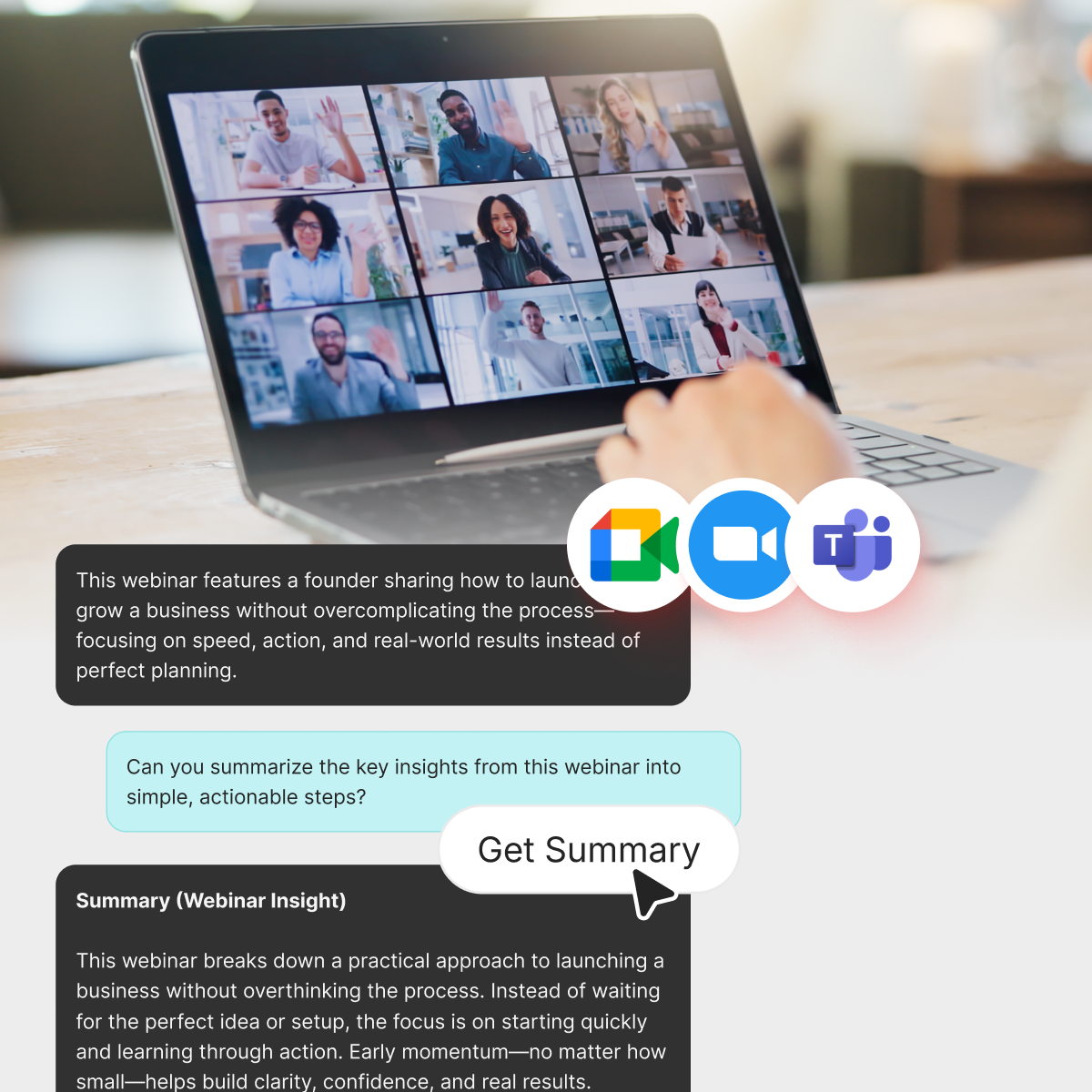




Running a live webinar while AI tools capture the transcript, summary, and key moments for later.
TL;DR
- Most teams now record webinars by default, but very few people rewatch the full hour.
- A good webinar summarizer gives you searchable transcripts, short summaries, timestamps, and highlights without extra manual note‑taking.
- Popular cross-platform options include Otter.ai, Fireflies.ai, tl;dv, Grain, and Tactiq.
- Zoom, Teams, and Google Meet now offer AI summaries, but dedicated tools still win on sharing, collaboration, and workflows.
- If your webinar lives on YouTube afterward, IsThisClickbait can turn the replay into structured highlights, clickbait checks, and must-watch moments you can skim in minutes.
In this guide, you’ll learn what these tools are, how they work with Zoom, Teams, and Meet, when it’s fine to stick with built‑in AI, and how to choose a setup that fits your team — plus a checklist to set up your first automatic summary.
What do webinar summary tools do?
After an hour-long product webinar or customer training, somebody always says, “We’ll share the recording.” Then it sits in a folder that nobody opens. The right tool steps in as the teammate who actually watched the whole thing and wrote clear notes, action items, and timestamps you can jump to immediately.
In practice, these tools plug into Zoom, Microsoft Teams, or Google Meet, record the webinar, generate a transcript, and then use AI to produce short summaries, highlights, quotes, and sometimes even auto-filled follow-up emails. Some tools join calls as a bot; others run via browser extensions or native integrations with each platform.
That matters because multiple recent webinar benchmarks show that roughly 45–52% of total webinar views now happen on-demand, not live — so for many registrants, the “recording” is the only version they ever see. Recording and packaging that replay well is now as important as the live event itself.
Unlike generic “AI note takers,” webinar-focused summarizers assume you will be sharing the recording with people who were not in the room. That means clearer section headers, tighter overviews, and links or timestamps that map to the flow of a live presentation rather than a meandering internal meeting. Good tools also separate evergreen content (like product demos) from time-sensitive details (like pricing) so you can safely reuse clips.
Common use cases include turning a single webinar into follow-up emails, sales enablement snippets, internal FAQs, or short clips for social. If you regularly publish webinar replays to YouTube, our YouTube summary guide shows how similar summarization workflows can save hours while keeping the full context intact.
Quick comparison: tools for Zoom, Teams, and Google Meet
Here’s a high-level look at popular tools people use as “webinar summarizers” across the big three platforms.
Most of these tools have free plans or trials, so the real question isn’t “which one exists?” but “which one actually fits how your team runs webinars and follows up afterward?”
When you scan this table, focus less on tiny feature differences and more on how each tool would actually show up in your week. Do you want something that quietly auto-joins every large webinar, or a tool your team launches only for flagship events? Does it need to understand multiple languages, or plug into a specific CRM? Writing down those constraints before you test anything will make the evaluation process a lot less overwhelming.
How these tools actually capture key moments
Under the hood, most webinar summarizer tools follow the same basic pipeline. The real difference is how much control and clarity they give you at each step.
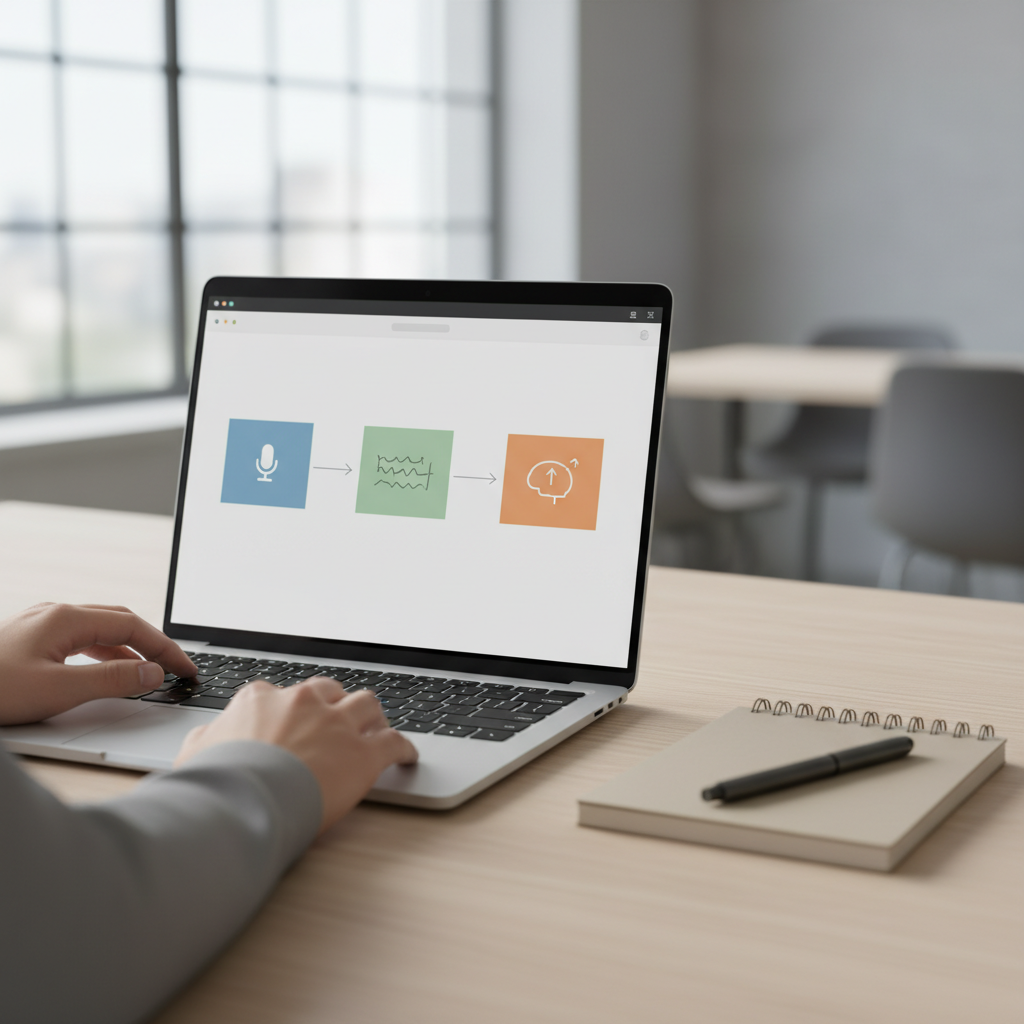
Typical 3-step flow: record the webinar, turn it into a transcript, then use AI to generate summaries and highlights.
1. Recording and transcription
First, the webinar is recorded. That can happen through:
- A bot that joins the call as a visible participant (Otter, Fireflies, tl;dv, Grain) Fireflies blog
- A browser extension that records your local audio/video (Tactiq, some “botless” tools) Zoom notes roundup
- Native recording from Zoom/Teams/Meet, later uploaded into a summarizer
Speech recognition turns the audio into text, often in real time. Many tools now support multiple languages and speaker labels, which matters if you run global webinars or panel discussions. Fireflies blog.
2. AI summaries and topic breakdowns
Once the transcript is ready, large language models generate:
- Short meeting summaries (“What was this webinar about?”)
- Section-wise notes (“What did we cover in the first 15 minutes?”)
- Action items and decisions (“Who owns the follow-up?”)
- Q&A recaps (“What did customers ask?”)
Some tools let you ask natural language questions about the webinar—“What did we promise on pricing?”—and get answers pulled directly from the transcript.
Most vendors now let you customize these outputs with prompts or templates—think “executive summary,” “customer-facing recap,” or “internal action log”—so different audiences get different views of the same call. It’s worth testing how easily non-technical teammates can tweak those settings without involving ops or engineering.
3. Highlights, clips, and timestamps
The part everyone loves is the highlight reel. Modern tools can:
- Auto-tag “key moments” (e.g., feature demos, objections, pricing)
- Create shareable video clips around those moments
- Add timestamps so teammates can jump straight to the part they care about
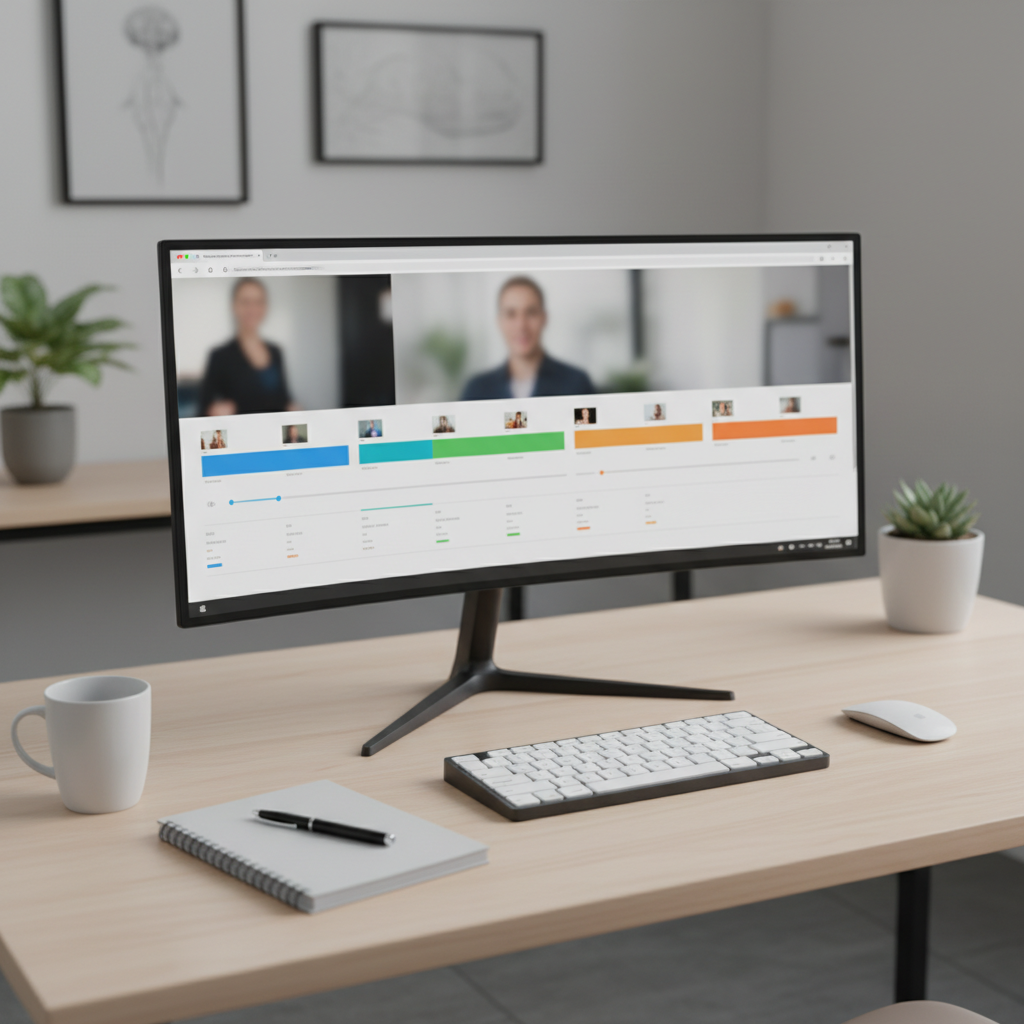
Example of a timestamped highlight reel: short AI blurbs plus jump links into the full webinar recording.
Some tools also detect moments of high engagement, like spikes in chat activity or Q&A volume, and use those to refine which segments they surface. Others let you mark important moments in real time with hotkeys or emojis, which can drastically reduce the time you spend hunting for “that one great question from 37 minutes in.”
For sales, success, and product teams, this is gold: instead of forwarding a one-hour recording, you can send a two-minute clip with a short summary and quotes.
When these highlights are organized into playlists or tagged libraries, they become a living reference: new teammates can replay only the sections that matter to them, and leaders can spot patterns in what customers keep asking. Over time, that turns your webinar archive from a dusty folder of MP4 files into a searchable system you can mine for messaging, objections, and product ideas.
Real-world results from meeting recaps suggest the payoff is meaningful. In one mini case study, a small product ops team that switched from manual notes to AI summaries reclaimed about 56 minutes of overhead per weekly meeting and cut median task closure time from six days to three, simply because decisions and owners were captured clearly and made searchable.
Best webinar summarizer tools by use case
Rather than hunting for a single “best” tool, match the tool to the way your team actually runs webinars.
Otter.ai: polished live notes for recurring webinars
Otter is popular with teams that host recurring training or internal town halls. Connect your calendar and it can auto-join calls, record, transcribe, and create searchable notes with highlights and action items.
Fireflies.ai: searchable archive for cross-functional teams
Fireflies leans into the “meeting memory” angle: it records webinars, syncs notes to tools like CRM and project management platforms, and lets you search across a shared library of transcripts and summaries. For teams running frequent customer or partner webinars, that archive starts to feel like a private knowledge base.
tl;dv and Grain: highlight-heavy customer webinars
If your biggest headache is sharing snippets from customer webinars with stakeholders who couldn’t attend, tl;dv and Grain shine. Both focus heavily on highlights and short clips, which makes it much easier to keep product, marketing, and leadership in the loop without yet another full meeting.
Tactiq: low-friction notes when IT is cautious
In some companies, bots that join every external webinar raise eyebrows with legal or security. Tools like Tactiq run as a Chrome extension, overlaying live transcription and AI notes in Zoom, Teams, and Meet without another “robot participant” in the attendee list.
Fathom: lean option for Zoom-heavy teams
If most of your webinars happen on Zoom, Fathom’s generous free tier and solid summaries can handle a lot of internal enablement sessions and customer demos without extra cost. Just keep an eye on its current support for Meet or Teams if your stack changes.
For more niche needs—like deep CRM integrations, recruiting workflows, or analytics—specialist tools such as Avoma, MeetGeek, Fellow, or Carv might fit better, but they tend to be overkill if you just want fast webinar recaps.
In practice, many teams end up with a small “stack” of webinar tools: one product might handle live transcription and note-taking, while another focuses on clipping and sharing, and a third manages long-term storage.
That can work well as long as it’s clear which tool is the source of truth for each use case—and at least one person from each core team (sales, success, marketing, product) has tested it on a real webinar before you commit.
Built-in AI summaries vs dedicated tools
Zoom, Microsoft Teams, and Google Meet now ship with their own AI assistants that can summarize meetings and webinars or create “smart recordings”. So why bother with third‑party tools at all?
Built-in AI is great for “good enough” internal notes, but dedicated tools usually win when you care about:
- Cross-platform support – one summary workflow, no matter where the webinar happens
- Sharing outside your org – easy clips and public links for partners or customers
- Integrations – pushing highlights into CRM, docs, or project tools automatically
- Controls & compliance – choosing between bot vs browser extension, storage regions, and retention rules CLDebloat guide
When “set and forget” bots are a liability
Always-on note-taking bots sound convenient, but they can backfire on external webinars. Some services will auto-join any calendar event and email summaries to everyone on the invite list by default, which has already surprised job candidates, clients, and IT teams enough that some organizations now block these bots at the system level.
On webinars with external guests, regulators, or press, an unsanctioned recording bot can raise privacy or consent questions even if the host ultimately controls the data. For those events, browser-extension summarizers (which only capture your own view) or host-controlled platform features are often safer than “auto-join everything” bots. Always check your legal and security guidelines before turning anything on by default—this article is not legal advice.
Do you really need a dedicated webinar summarizer?
If most of your webinars are small internal check‑ins, the AI summaries built into Zoom, Teams, or Meet may be enough. But once you start hosting external customer webinars, partner trainings, or paid workshops, it’s usually worth upgrading. Dedicated tools typically give you cleaner sharing links, better control over who sees what, and workflows that plug into your CRM or knowledge base. That’s the difference between “notes that exist somewhere” and a repeatable system your sales, product, and marketing teams can actually rely on.
You’ll especially feel the gap if your team routinely repackages webinars into blogs, documentation, or YouTube videos. Choosing a dedicated summarizer that exports clean text and timestamps makes it much easier to plug those recordings into downstream tools—like our own AI video summary workflow - instead of copy‑pasting highlights by hand.
In practice, many teams end up using both: built-in AI as the “safety net,” plus a dedicated summarizer on the most important external webinars where clarity, control, and shareability really matter.
How to choose the right tool for your team
Before signing up for yet another SaaS trial, run a quick fit check so you’re comparing tools against the same criteria.
Webinar Summarizer Fit Check
- Where do your webinars actually happen? If your customers insist on Teams but internal enablement lives in Zoom, pick something truly cross‑platform.
- Who needs the output? Sales wants deals and objections; product wants feature feedback; marketing wants clips. Look for templates or views that match each group.
- How sensitive is the content? For customer data or roadmap talk, review security pages, SOC 2 status, and data retention options, and loop in IT early. feature matrix
- Do you need automation or just faster notes? If you only host one webinar a month, a lightweight extension may be enough. If you run daily webinars across regions, calendar-based auto-joining and integrations will save more time.
- Where will the summaries live? Ideally, the notes don’t get trapped inside yet another silo. Shortlist tools that sync cleanly with your existing knowledge base or CRM.
It’s also worth mapping who will administer the tool. If marketing owns webinars but revenue operations manages CRM workflows, involve both groups early so no one is surprised by how recordings are shared or stored.
A simple sanity test: ask someone on your team to find last quarter’s flagship webinar and its notes in under 30 seconds. If they can’t, you likely need an upgrade. As a quick evaluation exercise, run that same recording through your top two tools and compare which summary is easiest to skim, share, and file away without extra editing.
For broader thinking on making video as scannable as text, check out our piece on YouTube summary tools, which looks at similar patterns on public video. The same habits carry over to webinars.
Where IsThisClickbait fits in your webinar workflow
A lot of teams now run live webinars on Zoom or Teams, then publish the replay on YouTube for long-tail views and SEO. That’s where IsThisClickbait comes in.

Using webinar summarizer tools and IsThisClickbait together to review and repurpose webinar replays on YouTube.
IsThisClickbait is an AI YouTube video analyzer that tells you what’s inside a video before you press play. It pulls the transcript, scores the title and thumbnail for clickbait, and turns long recordings into concise summaries, key points, and must-watch moments you can skim or search. That includes public or unlisted webinar replays on your channel.
A simple workflow looks like this:
- Run your live webinar in Zoom/Teams/Meet.
- Upload the recording to YouTube (public or unlisted).
- Open the video with IsThisClickbait running in your browser.
- Get a structured summary, key timestamps, and a clickbait score that tells you whether the title and thumbnail actually match what you delivered.
That combination, a meeting assistant for the live call plus IsThisClickbait for the replay—lets you serve both live attendees and the much bigger audience that watches later. Across our own user base, IsThisClickbait has already helped people skip or save more than 250 hours of watch time and make “watch vs skip” decisions about three times faster, based on aggregated product analytics we share on our homepage.
Over time, you can treat those webinar replays like a lab for your messaging. By comparing which segments people actually watch with the summaries and highlights you generate, you’ll spot which promises land and which ones cause viewers to drop off. Our AI video summary guide goes deeper on using summaries to tune titles, thumbnails, and calls to action.
Want to see how that feels on your own content? Drop a recent webinar replay into IsThisClickbait app and click Start analyzing.
Checklist: set up your first automatic webinar summary
Here’s a quick, copy-paste checklist you can share with your team in Slack or Notion.
- Step 1: List where you host webinars (Zoom/Teams/Meet) and who needs the summary afterward.
- Step 2: Shortlist 2–3 tools that support all of those platforms and your basic compliance needs.
- Step 3: Run the same webinar (or recording) through each tool and compare:
- Is the summary accurate and easy to skim?
- Are key moments and timestamps actually useful?
- Can you share notes or clips with external attendees safely?
- Step 4: Decide where summaries will live (CRM, wiki, shared drive) and set up integrations or simple export templates.
- Step 5: For replays on YouTube, run the video through IsThisClickbait so future viewers can skim, search, and sanity‑check the title before pressing play.
Once this is in place, “We’ll share the recording” can finally mean “We’ll share something people will actually read.”
If you want to go one step further, bake this checklist into your webinar planning template so that every new session automatically has an owner for the recording, the summary, and the follow-up. Consistency beats perfection when you’re trying to build a library people can trust.