


You put real effort into every YouTube video you ship - research, scripting, filming, editing. But once it is live, the clock starts ticking: viewers move on, algorithms rotate, and that hard-won content risks getting buried.
The fastest way to protect that effort is to turn each video into written content you control: blogs, newsletters, and social posts that live on your own channels. This guide walks through how to do that with an AI YouTube summarizer sitting right beside your video.

TL;DR
- A video summarizer for YouTube turns long videos into short, structured notes you can reuse everywhere.
- Creators can turn one recording into a blog post, newsletter, and multiple social posts in under 15 minutes.
- Use the AI YouTube video summarizer output as your rough draft, then add your tone, examples, and links.
How to summarize any YouTube video in 3 steps
- Open your video on YouTube with IsThisClickbait pinned.
- Run the summary to get key points and timestamps.
- Copy the summary into your writing tool and shape it into blog, newsletter, or social posts.
What is a YouTube summarizer?
If you publish on YouTube regularly, you already know the pattern: recording the video is only half the job. The rest is turning that same content into formats your audience can read, skim, and share.
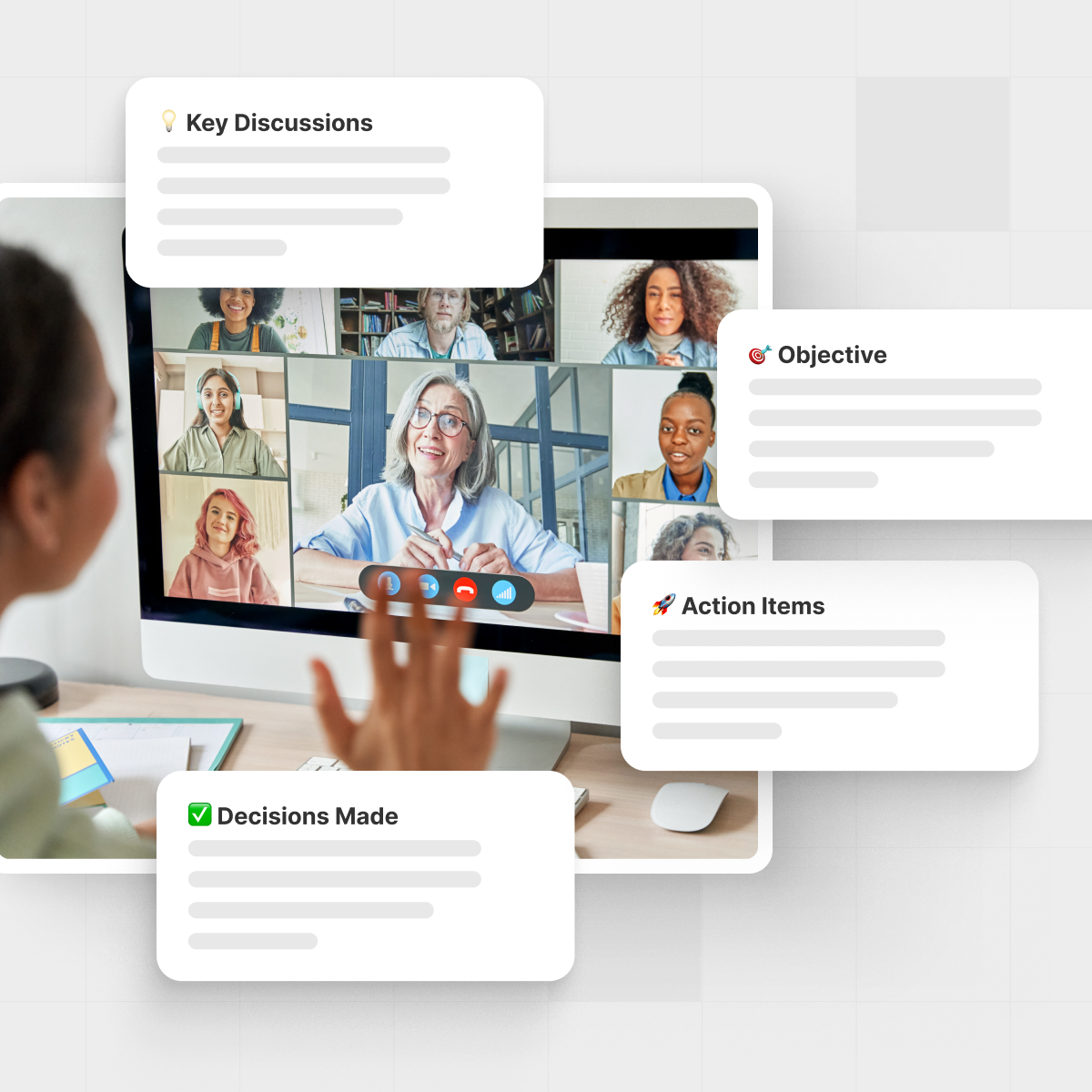
A YouTube summarizer is an AI tool that reads the video transcript for you and turns it into short, structured outputs: bullet‑point takeaways, section summaries, timestamps, and quotable lines.
How an AI YouTube video summarizer works
Under the hood, an AI YouTube video summarizer usually follows three steps:
- Pulls the full transcript from the YouTube video.
- Breaks it into sections (chapters, topic shifts, Q&A segments).
- Uses a language model to create human‑readable summaries, headlines, and highlights.
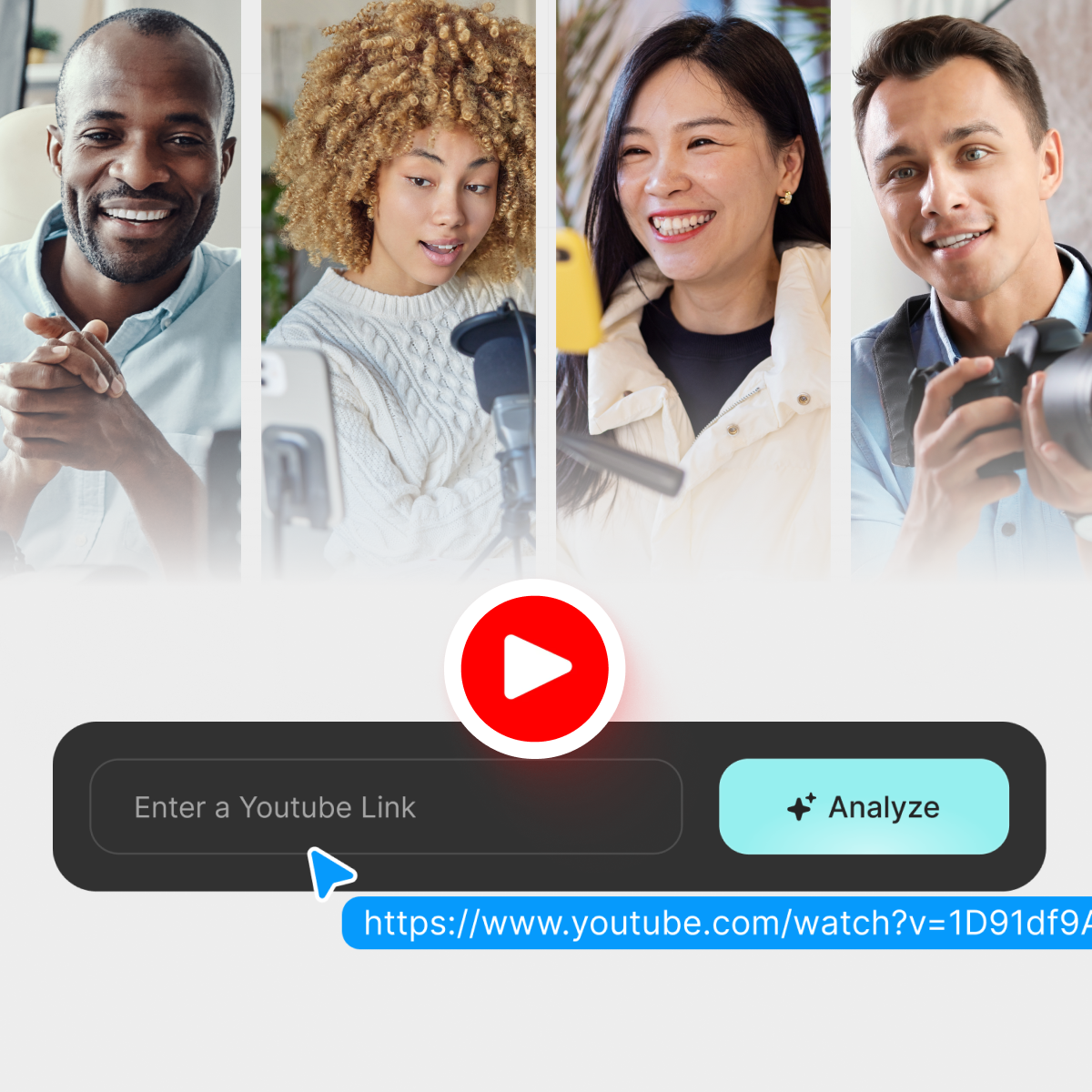
IsThisClickbait runs right beside YouTube in your browser. It reads the transcript, checks whether the title and thumbnail match the content and then turns the whole thing into a summary you can instantly repurpose.
That means you spend less time hunting through your own content and more time polishing what the audience will actually see on your site, in inboxes, and on social.
Why content creators lean on YouTube video summarizers
Ever recorded a 40‑minute tutorial and then stared at a blank CMS screen, wondering how to turn it into a post people will actually read? For many creators, the real time sink is rewatching—scrubbing back and forth for examples, scanning auto‑captions, and effectively watching your own video twice.
A YouTube video summarizer cuts that overhead by:
- Giving you an instant outline of what you covered.
- Surfacing your main arguments and frameworks.
- Highlighting “must‑keep” quotes for email and social.
- Pointing to timestamps for screenshots and embeds.
Instead of rebuilding your thinking from scratch, you start from clean notes you can quickly shape into blogs, newsletters, and social posts.
Even YouTube itself encourages repurposing long‑form content into Shorts and other formats in its creator resources. A summarizer sits at the start of that pipeline so the written outputs feel natural instead of like an afterthought.
From one video to many assets: key use cases
1. Turn a video into a blog post
Publish on YouTube first, then use the summary beside your editor to turn the same material into a search‑friendly article.
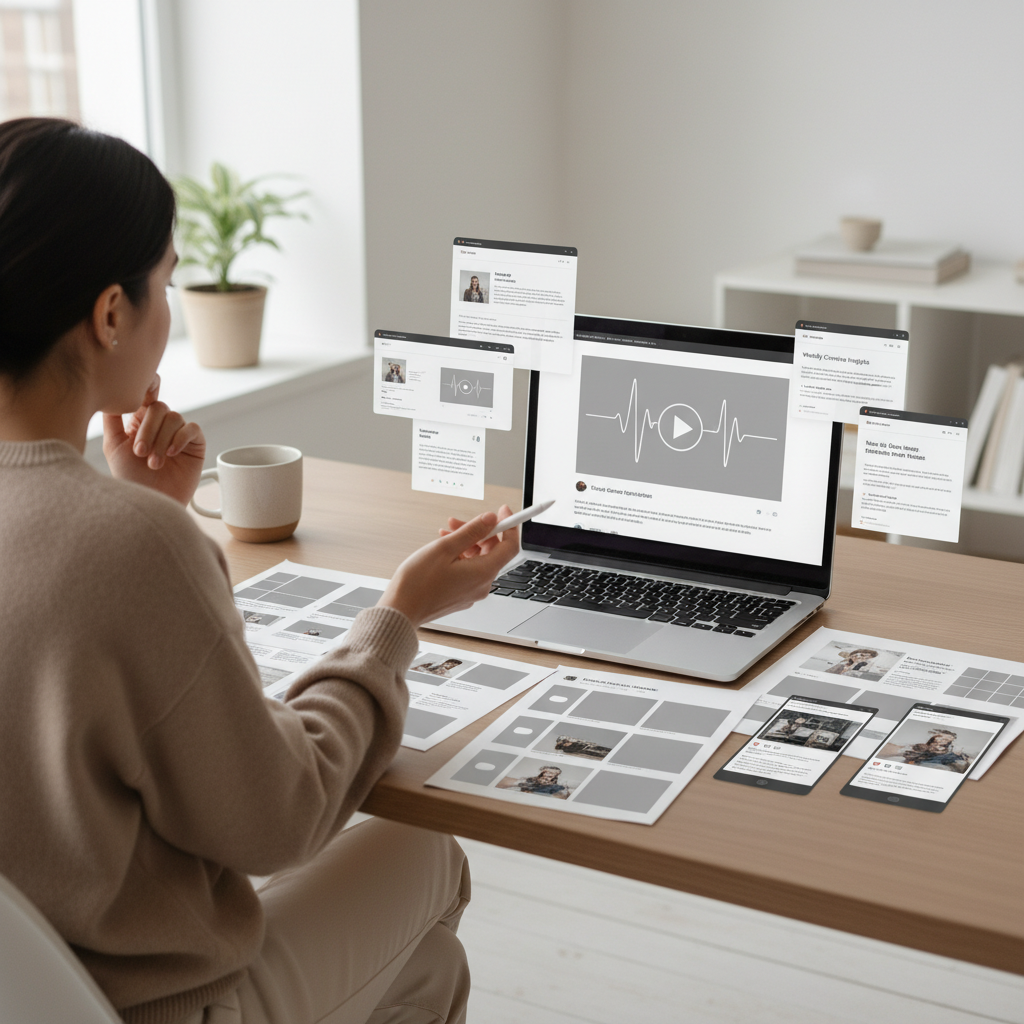
- Use the auto‑generated outline as your H2 and H3 structure.
- Drop key points directly into paragraphs as starting copy.
- Pull timestamps to embed specific moments and keep titles aligned with the actual content.
2. Turn a video into a newsletter
Newsletters thrive on clear stories and quick wins. Use the summary to pick a single strong angle (for example, three editing rules from a “How I edit a video in under 2 hours” tutorial), build 2–3 short sections around it, and then link back to the full video and related posts on your site.
3. Turn a video into social posts and threads
Short content needs sharp hooks and punchy lines. An AI YouTube video summarizer is excellent at surfacing:
- Contrarian statements you made on camera.
- Numbered frameworks (“my 4‑step system for…”).
- Stories and examples that can stand alone in a tweet or LinkedIn post.
Take the summary, pick one takeaway per post, and add your platform‑specific spin (emojis, questions, CTAs). For more repurposing ideas, see the students and pros & teams pages and this video‑to‑blog guide.
The IsThisClickbait 6‑Step Repurposing Workflow
Here’s the six‑step workflow creators use with IsThisClickbait as their YouTube summarizer to go from raw video to ready‑to‑publish drafts.
- Install the browser extension or open the web app. Pin it in your browser so it’s one click away whenever you’re on YouTube.
- Open your video on YouTube. This works for your own uploads, unlisted client videos you have access to, and public content you’re researching.
- Run the analysis. IsThisClickbait pulls the transcript, compares the title and thumbnail to the content, and generates:
- a concise summary,
- key points and topics,
- timestamps and must‑watch moments.
- Copy the summary into your writing tool. Paste it into your blog editor, newsletter tool, or doc as a working draft.
- Shape it into the right format. Turn headings into H2s, add subheads, examples, screenshots, and internal links to relevant pages like your pricing or resources.
- Use the Q&A chat for gaps. If you forget where you mentioned something, ask the built‑in chat in the side panel (“Where do I talk about editing shortcuts?”) and jump straight to that part of the video.

“Think of the AI summary as your producer’s notes: it won’t replace your voice, but it saves you from starting with a blank page.”
Example: turning a 30‑minute tutorial into written content in 20 minutes
Imagine a 30‑minute screen‑recorded tutorial: instead of spending about an hour rewatching and outlining it, you might spend a few minutes letting IsThisClickbait analyze the video, then 10–15 minutes shaping that outline into a blog draft, newsletter, and a handful of social posts.
Tips for better AI YouTube video summaries
AI does its best work when your raw material is clear. A few small changes to how you record can make your summaries much stronger.
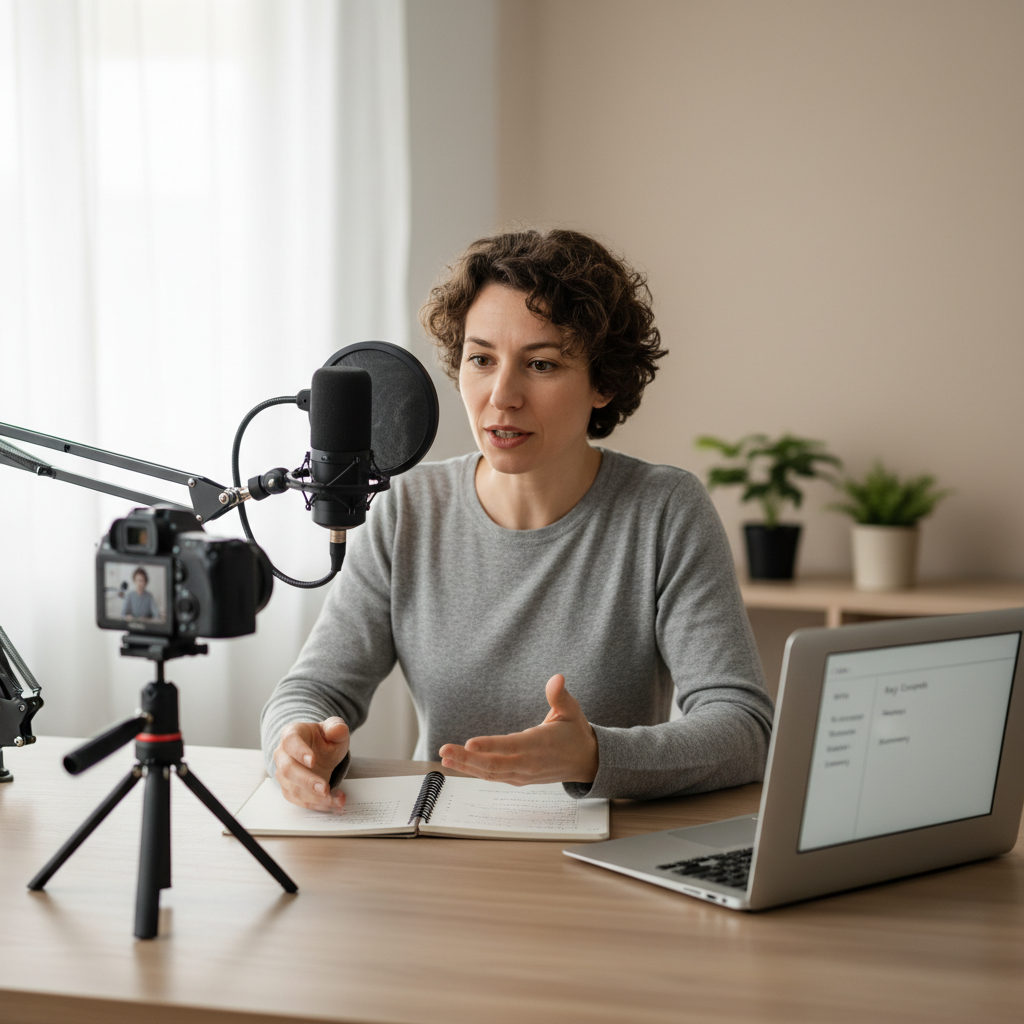
- Speak your outline out loud. Say “First, second, third…” or “Step one, step two…” so the model can pick up structure.
- Use chapter markers in YouTube Studio. Chapters give the summarizer clean section breaks to work with. If you need a refresher, YouTube’s own YouTube chapters help article walks through adding timestamps.
- Repeat the core takeaway near the end. This makes it more likely your key message shows up in the final bullet points.
- Stay on one topic per video when you can. A focused video turns into clean written assets. An everything‑bagel video turns into a messy outline.
If you want to go deeper on structuring educational videos, YouTube’s own YouTube Creators resources have solid basics on pacing and chaptering.
Educational research suggests that pairing concise video explanations with structured notes or prompts can improve learning and retention compared with video alone—for example in short educational videos in undergraduate pharmacology and in a meta‑analysis of active video‑learning strategies.
Why you shouldn’t paste raw AI summaries straight into your blog
It’s tempting to copy‑paste the output from your summarizer and hit publish. That’s fast—but it’s also how you end up with flat, generic content that doesn’t sound like you and sometimes misses important nuance.
- Your voice matters. Raw summaries are optimized for clarity, not personality. You still need to add your stories, opinions, examples, and transitions.
- Context gets lost. The tool doesn’t know which parts of the video matter most to your specific audience or product. You do.
- Accuracy needs a human check. Summaries can compress or oversimplify complex ideas. For anything that touches money, health, or legal topics, you should always verify key claims against the actual video and trusted sources.
- SEO requires intent, not just keywords. You still have to choose the right search terms, structure the page, and add internal links in a way that fits your broader content strategy.
Treat the AI summary as a shortcut to a strong first draft, not a finished article—your quick edit pass is where your experience, brand, and trust signals show up.
How IsThisClickbait differs from basic YouTube summary tools
Most YouTube summary extensions stop at a single paragraph of text. Helpful, but not enough if you’re running a real content engine.
IsThisClickbait is built for people who treat video like research material:
- Clickbait with context. See whether your title matches the substance of the video, so your blog and email copy stay honest and persuasive.
- Searchable insights. Scan a long lecture, webinar, or podcast episode to find the specific claim you want to quote.
- Q&A chat. Ask questions about the video content (“What are the three retention tips mentioned?”) instead of scrolling through the transcript.
- Side‑by‑side workflow. Keep the summary open in a side panel while you write, instead of juggling tabs and windows.
That combination makes it much easier to go from “I watched this video last week” to “Here’s the finished blog post summarizing it, with proper links and examples.”
You can see the full feature set and plans on the IsThisClickbait pricing page.
How to choose the right YouTube summarizer
There are dozens of tools that promise to “summarize any video.” To pick the right one for serious content work, look beyond the marketing blurb and evaluate how it will actually fit into your day‑to‑day workflow.
- Speed on real videos. Test the tool on a 30–60 minute video, not just a short clip. You want summaries in seconds or a couple of minutes, not a long queue.
- Transcript quality. Good summarizers either pull the official YouTube transcript or generate a high‑quality one. If the output feels garbled or misses key sections, your written content will too.
- Side‑panel vs. new tab. For repurposing, a side‑panel that sits next to YouTube lets you write with the summary in view, instead of constantly flipping between tabs or windows.
- Q&A chat. Static summaries are useful; a built‑in “chat with the video” interface is better. It lets you ask follow‑up questions (“Where do I talk about camera settings?”) and jump straight to the right timestamp.
- Export and copy options. At minimum, you want clean copy‑and‑paste into your editor. Bonus points for tools that let you copy in Markdown, export to docs, or save summaries into a notes app or knowledge base.
Run this checklist on any summarizer you are considering. The right choice should feel like a natural extension of your existing publishing stack, not another tool you have to fight with.
FAQ: common questions about YouTube summarizers
Is using an AI YouTube video summarizer allowed?
Yes. You’re working with the video transcript and your own commentary, just in a faster way, and you still decide what goes on your site, in your newsletter, and on social.
Will a summarizer replace my writing?
No. A summarizer gives you a structured draft and key points, but your stories, examples, and formatting still do the real work, so treat it as a starting outline, not a ghostwriter.
What’s the best way to keep SEO in mind?
Start from the summary, then group ideas under clear headings, use phrases your audience actually searches for, and add genuinely helpful internal and external links. Over time, your videos and written pieces reinforce each other instead of living in separate silos.
Do I still need a transcript if I use a summarizer?
Most tools, including IsThisClickbait, read the video transcript for you, so you usually don’t have to download it manually. But if YouTube can’t generate a clean transcript—because the audio is noisy or the language isn’t well supported—you’ll get weaker summaries and should double‑check important sections yourself.
Can I use a summarizer on client or unlisted videos?
If a client video is public or unlisted on YouTube, you have permission, and a transcript is accessible, most summarizers can analyze it. Truly private, internal, or region‑locked videos are different, so always follow your client agreements and privacy policies before running sensitive material through any third‑party tool.
Does a YouTube summarizer work in other languages?
Many summarizers handle multiple languages as long as YouTube’s transcript is reasonably accurate in that language. If it’s auto‑generated with lots of errors or heavy jargon, expect to skim the summary carefully and edit terminology before you publish.
Bringing it all together
If you’re already putting serious effort into YouTube, a YouTube summarizer should feel less like a shiny extra and more like part of your basic toolkit—right next to your editor, thumbnail designer, and email platform.
One video can now become:
- 1 search‑optimized blog post,
- 1 story‑driven newsletter,
- 3–10 social posts or threads,
- and a set of internal notes you and your team can refer back to later.
If you’d like that process to live right inside your browser, next to every YouTube tab, you can try IsThisClickbait and see how your next upload feels when the “repurpose everything” part is mostly done for you.
When you’re ready, see plans and start analyzing from the pricing page.