


A YouTube playlist length calculator lets you plan homework without late‑night manual timing.
As a teacher, you’ve probably been there: it’s 10:47 p.m., you’re building tomorrow’s flipped lesson, and you’re manually adding up times from a YouTube playlist. One video is 7:23, the next is 11:02, then 4:56… and suddenly that “quick” homework set has turned into a 45‑minute rabbit hole.
A youtube playlist length calculator saves you from that math, so you can focus on whether the videos are actually worth your students’ time. In this guide, we’ll look at how to plan class playlists with clear timing, content quality, and zero guesswork.
TL;DR: Fast playlist planning workflow
- Set a time budget for the lesson (for example, 15 minutes of video for a 45‑minute class).
- Build a YouTube playlist with candidate videos.
- Use a playlist duration tool or extension to see the total watch time at a glance.
- Trim, reorder, or swap videos until the total length fits your plan.
- Layer in summaries and honesty checks with IsThisClickbait so students get focused, trustworthy content.
What is a YouTube playlist length calculator?
A YouTube playlist length tool adds up the duration of every video in a playlist and shows you the total watch time. Some tools also break the time down by hours, minutes, and seconds, and can show an average video length.
That might sound simple, but when you’re building a playlist of five, ten, or twenty clips across units and topics, it saves a lot of scribbled notes and mental arithmetic.
You can get a rough sense of timing directly in YouTube—playlists show durations on thumbnails, and YouTube Studio gives some analytics. The catch is that none of this is designed around a teacher’s schedule. Class periods and training sessions run on tight timeboxes, and you need instant answers like:
- “Does this playlist fit in a 40‑minute lesson if I leave time for discussion?”
- “How long will this review playlist take as homework?”
- “Can my trainees finish this pre‑work before our live Zoom call?”
That’s where a dedicated calculator (or a browser extension that supports playlists) earns its keep.
Which YouTube playlist length calculator should teachers use?
Any tool that totals video time will work, but some are faster and more teacher‑friendly than others. Here are a few web‑based calculators that don’t require sign‑ups and work well for class planning.
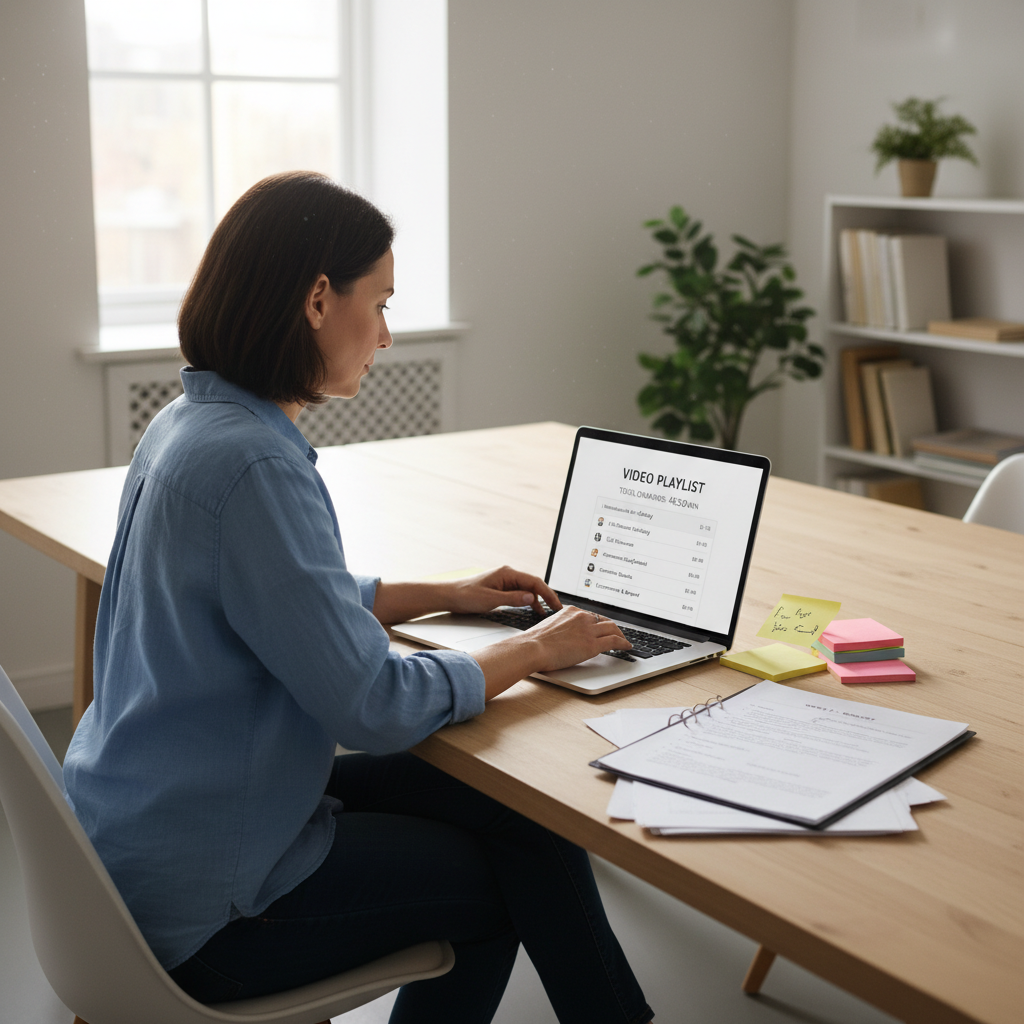
A simple youtube playlist length calculator dashboard makes it easy to match runtime to your lesson plan.
- TunePocket playlist calculator — Paste a YouTube playlist URL or ID and instantly see how many videos it contains and the total runtime in HH:MM:SS. Ideal when you just need a quick, reliable total before class.
- SummYT playlist calculator — Calculates total duration, lets you adjust for different playback speeds (0.25x–2x), and lets you include or exclude specific videos while watching the total update in real time.
- YTPlaylistLength tool — Provides detailed breakdowns of total playlist time in hours, minutes, and seconds, plus viewing estimates at different playback speeds, using a simple copy‑and‑paste workflow.
What should teachers look for in a playlist calculator?
When you pick a calculator for regular lesson planning, look for:
- No login or cost. You should be able to paste a URL and get an answer in seconds, even during a rushed planning period.
- Support for public and unlisted playlists. That way, you can time both your own playlists and curated ones from other channels.
- Ability to handle long playlists. If you use semester‑long review playlists, choose a tool that works reliably with hundreds of videos.
- Playback‑speed awareness. Tools that show durations at 1.25x or 1.5x are useful, but always plan your time budget at 1x so you don’t accidentally overload students who watch at normal speed.
- Easy copying or exporting. It should be simple to copy the total duration into your lesson plan, LMS, or slide deck.
The specific tool matters less than having a consistent process. Pick one calculator you like, bookmark it, and make “paste playlist → check total” a two‑minute habit whenever you assign YouTube work.
Why playlist timing matters in teaching and training
When the videos overrun the clock, you pay for it in rushed explanations, shallow discussions, or “we’ll finish this next time” moments that push your syllabus off track.
For teachers and trainers, timing questions come up every day:

Good playlist timing protects discussion and practice time in class.
- K–12 teachers: Need to balance direct instruction, group work, and assessments within 40–60 minutes.
- University instructors: Juggle longer lectures with flipped homework, labs, and office hours.
- Corporate trainers: Schedule micro‑learning blocks inside busy calendars where every minute has a meeting invite waiting.
Research on online learning consistently finds that shorter, focused videos keep attention better than long monologues. One large MOOC study, for example, reported that 6–10‑minute videos had significantly higher average viewing times than videos longer than 12 minutes.
Flipped‑classroom research also shows that students tend to prefer pre‑class videos under about 10 minutes, rating them as the most effective length for staying focused. That doesn’t mean every clip must be three minutes long, but stacking several long lectures into one playlist is a recipe for skimming and fatigue.
How long should YouTube homework playlists be for K–12?
There’s no single perfect number, but you can use research and classroom experience as guardrails:
- Elementary (K–5): Aim for about 5–10 minutes of total video, broken into 2–3 very short clips. This matches typical recommendations of keeping elementary flip videos around 5–10 minutes, with slightly longer options for upper elementary.
- Middle and high school: 10–20 minutes of total video is usually plenty for homework. Experienced flipped‑lesson teachers point out that a “quick” 5‑minute video often takes students 10–15 minutes once you factor in pausing and note‑taking, and a 15–20‑minute video can easily turn into 30–60 minutes of real work.
As a rough rule of thumb, if your homework playlist regularly takes longer than half the length of your in‑class period, it’s probably too long for most students’ schedules.
How much pre‑work video can adult learners handle?
For university and workplace training, adults usually tolerate slightly longer videos—but they still benefit from shorter segments. Instead of assigning a single 40‑minute lecture, it’s often better to split it into 3–5 “chapters” of 8–12 minutes each so learners can pause between concepts and fit viewing into their schedule.
A good starting point for adults is 15–30 minutes of total pre‑work video per session, broken into multiple short clips. A playlist length calculator makes it easy to check that your pre‑work matches the time you’ve promised learners.
Common mistakes with playlist timing (and how to fix them)
- Mistake: Assigning videos equal to the full class period.
Fix: Plan for video to take at most one‑third to one‑half of the class time so you still have room for discussion, practice, and questions. - Mistake: Ignoring pause and note‑taking time.
Fix: Assume students will need 1.5–2x the raw video length when they’re pausing, rewinding, and writing notes. A 10‑minute clip can easily become a 20‑minute task. - Mistake: Planning around 1.5x playback speed.
Fix: Even if some students watch faster, set your official time budget using 1x. Treat faster playback as a bonus, not a requirement. - Mistake: Cramming multiple objectives into one long playlist.
Fix: Create shorter, focused playlists (for example, “Intro to derivatives – 12 min” and “Product rule practice – 9 min”) so students can revisit only what they need. - Mistake: Forgetting to leave time for in‑class use of the video.
Fix: When you design the playlist, decide exactly how you’ll use it in class—quick warm‑up check, group problem, debate—and keep that time in your plan.
“Good playlists respect the clock and the learner’s attention.”
With a clear total duration, you can make deliberate trade‑offs instead of guessing. Ten minutes left in class? Trim one video and turn it into an optional enrichment. Running an intense onboarding week? Split a long playlist into daily “episodes” that match your agenda.
Step‑by‑step: Use a playlist duration calculator to plan a class
Here’s a simple workflow you can reuse for any subject or training topic. It works with any of the calculators above or with a browser extension like IsThisClickbait that supports playlists.
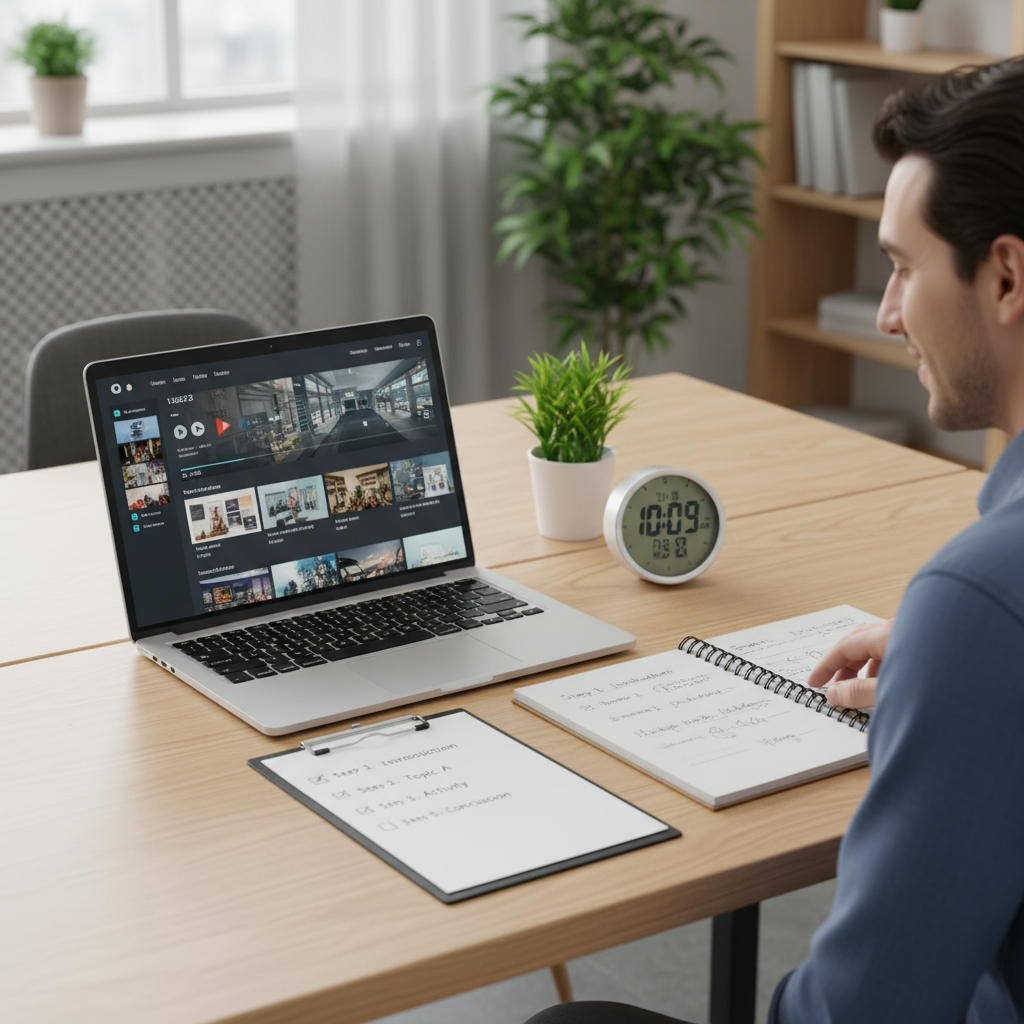
A repeatable YouTube playlist length calculator workflow keeps each lesson within your time budget.
1. Start with your time budget
Before you open YouTube, decide how much video time you can “spend.” For example:
- In‑class watch time: 10–15 minutes out of a 45‑minute period.
- Flipped homework: 15–25 minutes, depending on age and workload.
- Corporate training: 20–30 minutes of video mixed with reflection prompts.
Write this number down. It becomes your guardrail.
2. Collect candidate videos into a playlist
Create a new playlist in YouTube and add every video you might use. Don’t worry if the list ends up long; this is your “first draft.”
If you’re new to playlists, YouTube’s own YouTube playlist guide walks through the basics.
3. Run the youtube playlist duration calculator
Now paste your playlist URL into your calculator of choice or open it with your extension. In a couple of seconds you should see:
- Total playlist length in hours, minutes, and seconds.
- Number of videos.
- Average video length (handy for pacing future lessons).
Many teachers like to keep a simple “time log” in their planning doc or LMS, noting the playlist total next to each lesson.
4. Trim, swap, and reorder to match your plan
If the total time is over your budget, start editing:
- Remove overlapping or lower‑value videos.
- Replace long clips with shorter alternatives that hit the same concept.
- Move key explainer videos earlier in the playlist so students see them first.
Run the calculator again after each batch of changes until the total fits. This two‑minute loop replaces the usual “I think it’s about half an hour” guesswork.
5. Add summaries and guiding questions
Once your timing is right, turn the playlist into a structured learning path:
- Use AI transcript summaries to pull key points from each video.
- Write 1–3 guiding questions students should answer while watching.
- Note approximate timestamps where they can pause and reflect.
- Turn the AI output into shareable YouTube study notes you can paste into your LMS or slide deck.
This is where tools like IsThisClickbait shine: you already have the duration handled, and now you get clean summaries and clickbait checks layered on top. For a deeper walkthrough of this step, see our AI video summary tool guide.
Micro case: 8th‑grade algebra homework playlist
Imagine you teach 8th‑grade algebra and have a 45‑minute class tomorrow. You want students to watch some examples at home so you can spend class time on practice.
- You set a homework budget of 15 minutes of video, knowing that with pausing and notes it will feel more like 25–30 minutes of work.
- You build a playlist with four candidate videos: 6:30, 8:45, 4:10, and 3:00.
- You paste the playlist link into a calculator like TunePocket or YTPlaylistLength and see that the total runtime is just over 22 minutes.
- That’s higher than your budget, so you remove the 8:45 video and re‑run the calculator. Now the total is about 13 minutes—much closer to your target.
- On each remaining video, you open the IsThisClickbait extension, skim the AI transcript summary, and turn the key ideas into structured YouTube study notes with two guiding questions per clip.
The result: students get a focused, realistically timed playlist plus clear notes, and you walk into class knowing exactly how much pre‑work they’ve had time to do.
Examples for 30, 45, and 60‑minute sessions
To make this concrete, here’s a simple planning pattern you can reuse. It assumes you’re using a YouTube playlist duration calculator to stay within your budget.
30‑minute workshop or review session
- Playlist total: 10–12 minutes.
- Structure: three short videos (3–4 minutes each) with quick checks after each.
- Live time: introductions, discussion, and a short activity.
45‑minute class period
- Playlist total: 12–15 minutes.
- Structure: one core explainer (6–8 minutes) plus two shorter reinforcement clips.
- Live time: modeling, guided practice, and exit ticket.
60‑minute training session
- Playlist total: 15–20 minutes.
- Structure: a “chaptered” playlist broken into 3–5 segments that match your agenda.
- Live time: demos, Q&A, and scenario work between segments.
Once you have these patterns in mind, planning becomes as simple as “Target: 15 minutes of video; does this playlist fit?” One click in your calculator gives you the answer.
Beyond timing: check for clickbait and content quality
Length is only half the story. A perfectly timed playlist can still flop if the videos:
- Over‑promise in the title and under‑deliver in the content.
- Spend the first four minutes on filler before touching the lesson objective.
- Explain concepts in a way that conflicts with how you teach them.
This is where combining a playlist calculator with an analysis tool like IsThisClickbait pays off. You can:
- Scan summaries of each video to see what’s actually covered before assigning it.
- Check an honesty‑versus‑clickbait score to avoid misleading titles.
- Jump straight to the timestamps where key concepts are explained.
Instead of watching every minute yourself, you review structured notes right alongside the total duration. That means you can answer questions like “Is this 18‑minute video worth my students’ attention?” with more than a hunch.
Tips for using YouTube playlists in flipped and blended learning
Once you’re comfortable with timing and summaries, a few small habits make your playlists even more effective.
- Label playlists by unit and time. For example: “Unit 4 – Linear Functions – 14 min.” Future‑you will thank you.
- Front‑load the most important video. Students don’t always finish a playlist; make sure the first clip moves the needle.
- Mix teacher‑made and curated content. Short custom intros recorded by you can frame a longer external video and connect it directly to your course outcomes.
- Share realistic expectations. Tell students how long the playlist is and how you expect them to interact with it: pause, rewind, take notes, answer prompts.
- Reuse your best playlists. A good sequence for this year’s class can become a reusable asset next term with only minor timing tweaks.
For more YouTube workflow ideas, you can also explore our AI YouTube summary guide to turn longer videos into quick study notes.
Try IsThisClickbait with your next playlist
You don’t have to give up on YouTube to take back control of your time. A solid youtube playlist duration calculator gives you the numbers; an honest‑video layer like IsThisClickbait shows you what’s inside each video before you share it with a room full of learners.
With the IsThisClickbait browser extension, you can:
- See structured summaries and key points for individual videos and playlists.
- Spot clickbait‑style titles before they land in your LMS or training deck.
- Turn long lectures into skimmable notes your students can revisit later.
Ready to test it with your next unit or onboarding series? Install the extension, grab a playlist you already use, check the timing with your favorite calculator, and let IsThisClickbait handle the “What’s actually in here?” part.
Key takeaway
When you know exactly how long a playlist runs—and what’s inside each video—you can match YouTube homework and training to your schedule, not the other way around.
.webp)
.webp)
.webp)